PromptBar & Quick Prompts
Free-form AI questions and one-click prompt buttons
PromptBar Overview
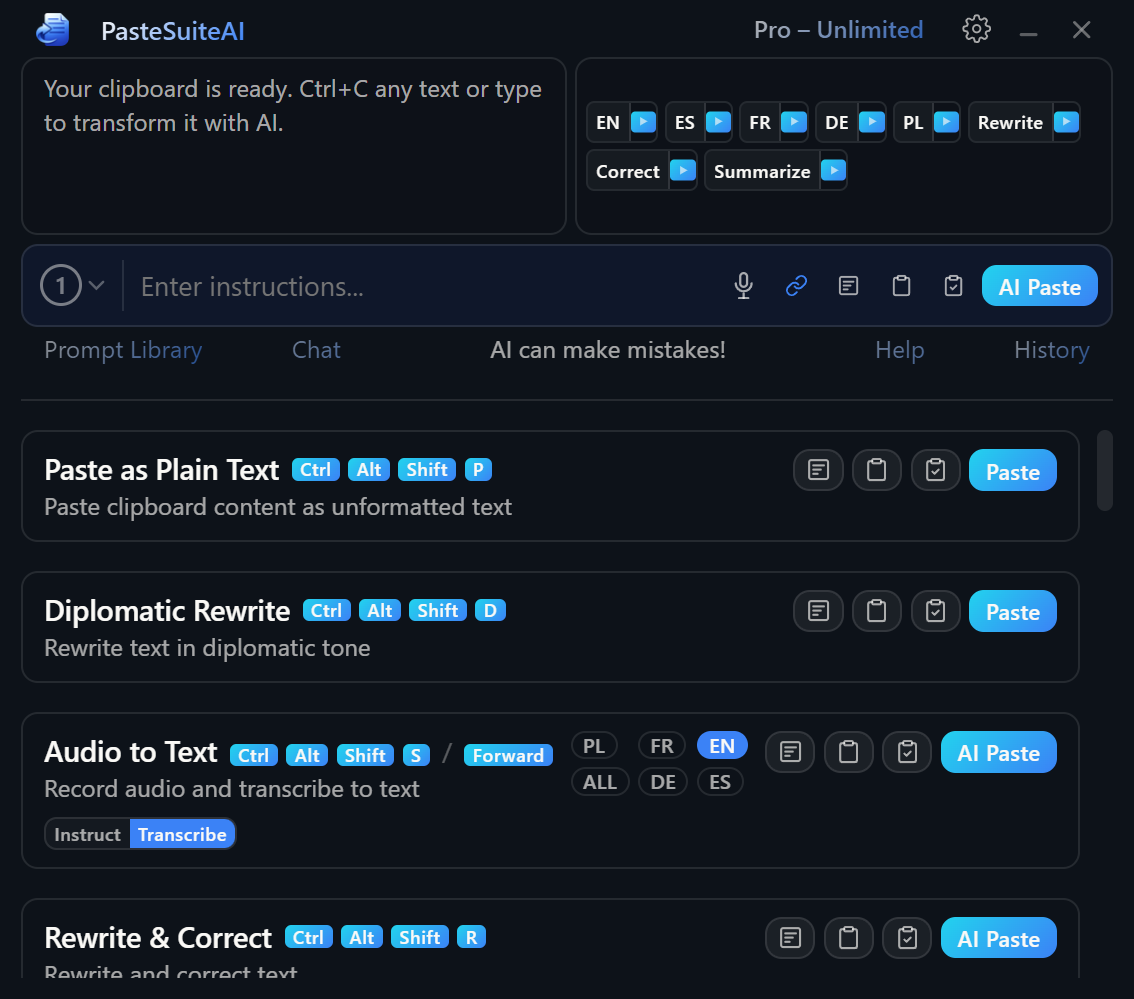
The PromptBar is the prompt input area on the main panel. Type any instruction, combine it with your text in one of six modes, and execute it via your configured AI connection. The result can be pasted directly, saved for later use, or shown in a floating overlay — all without leaving your current application.
The PromptBar is available when at least one AI connection is configured. An inline connection selector above the textarea lets you switch connections without opening Settings. See Connections for setup details.
Input Modes
Click the input mode toggle button (the small icon to the left of the execution buttons) to cycle through six modes. Each mode controls how your typed prompt and your current text are combined before being sent to the AI. Hovering over the button shows a tooltip with the name and description of all six modes.
| Mode | What the AI receives | Best for |
|---|---|---|
| Instruct (default) | Your prompt as the instruction; your text as the content to transform | Editing, rewriting, or transforming existing text |
| Supply | Your text first, then your prompt as additional context (swapped order) | When your text is the primary subject and your prompt adds supporting context |
| Combine | Your prompt and your text merged into one input | Combining two pieces of text for the AI to process together |
| Combine Reversed | Your text first, then your prompt, merged together | Same as Combine but with your text leading |
| Solo | Only your typed prompt; input text is excluded entirely | Standalone questions or generation tasks independent of any input text |
| Forward | Input text passed through without modification | Routing input text through a chained action unchanged |
Execution Buttons
Four buttons to the right of the input mode toggle control what happens to the AI result. All four are disabled while a previous request or recording is in progress.
| Element | Type | Description |
|---|---|---|
| Overlay (pop-up icon) | Button | Shows the AI result in a floating overlay window near the cursor. Nothing is pasted or copied automatically. |
| Clipboard (clipboard icon) | Button | Copies the AI result to the clipboard silently. Paste it anywhere with Ctrl+V. |
| Paste+Clipboard (clipboard with checkmark icon) | Button | Pastes the result into the active application and also copies it to clipboard for further use. |
| AI Paste (primary button) | Button / Enter | Pastes the result directly into the active application, replacing the current selection. Pressing Enter in the textarea triggers whichever execution mode is set as the default (configurable in Settings > General). Use Shift+Enter to insert a newline in the textarea without executing. |
Microphone Input
When an STT-capable connection is configured and set as the active STT default, a microphone button appears inside the prompt textarea area. Click it to record audio instead of typing. The recorded audio is transcribed and the result is delivered using the same execution path as typed prompts.
While recording, the textarea area shows the current state alongside inline controls:
| Element | Type | Description |
|---|---|---|
| Microphone button (idle state) | Button | Starts a PromptBar recording session. Only visible when an STT connection is active and recording is not in progress. |
| Recording indicator | Label | Shows "Recording" while audio is being captured |
| Pause button | Button | Pauses the active recording. Audio captured so far is preserved. |
| Paused indicator | Label | Shows "Paused" while recording is suspended |
| Resume button | Button | Continues a paused recording |
| Stop button | Button | Stops recording and sends the audio for transcription |
| Processing indicator | Label | Shows "Processing" while the audio is being transcribed by the AI |
For per-action STT configuration including microphone selection, languages, and audio quality settings, see Speech to Text.
Connection Selector
An inline connection selector appears above the prompt textarea when a connection is active. It displays the current connection name and model badge. Click it to open a dropdown and switch to a different AI connection for the next request.
The connection used by the PromptBar can be fixed to a specific connection via the LLM Connection Override in Settings > General. When an override is active, the inline selector reflects it.
| Element | Type | Description |
|---|---|---|
| Connection badge (inline trigger) | Button | Shows the active connection name and model. Click to open the connection dropdown. |
| Connection dropdown items | List | All configured AI connections. Click any item to switch to that connection for the next prompt execution. |
Quick Prompts
Quick Prompts are one-click buttons displayed above the prompt area, organized into three categories. Each button runs a pre-defined prompt with a single click, without requiring you to type anything.
| Category | Purpose |
|---|---|
| Image | Vision-related prompts such as describing an image, OCR, and visual analysis of screenshots |
| Text — Language | Translation and language-specific tasks such as translating to another language or grammar correction |
| Text — General | General-purpose text tasks such as rewriting, summarizing, or formatting text |
Each Quick Prompt button has two independently configurable click actions:
- Left-click: Triggers the primary action (fill, execute+copy, or execute+paste)
- Right-click arrow (►): Triggers the secondary action, configured separately from the left-click action
The three possible click actions are:
| Action | Description |
|---|---|
| Fill | Inserts the prompt text into the PromptBar textarea without executing. You can review or edit it before sending. |
| Execute + Copy | Executes the prompt immediately and copies the result to clipboard |
| Execute + Paste | Executes the prompt immediately and pastes the result into the active application |
Quick Prompts Settings
Manage Quick Prompts in Settings > Quick Prompts tab.
| Element | Type | Description |
|---|---|---|
| Category header toggle | Toggle | Show or hide an entire Quick Prompt category on the main panel. Independent from per-QP enable toggles. |
| Category collapse arrow | Button | Expand or collapse a category section in the settings list for easier browsing |
| Per-QP enable toggle | Toggle | Enable or disable individual Quick Prompts within a category without deleting them |
| Move Up / Move Down buttons | Buttons | Reorder Quick Prompts within their category. Order in settings matches order on the main panel. |
| Edit button | Button | Opens inline edit mode for a Quick Prompt. Fields auto-save as you type. |
| Delete button | Button (danger) | Permanently removes the Quick Prompt after a confirmation dialog |
| Add Quick Prompt button | Button | Creates a new Quick Prompt and immediately opens it in inline edit mode |
| Restore Defaults button | Button | Resets all Quick Prompts to the factory-provided set after confirmation. All customizations are removed. |
| Prompt Library link (edit mode) | Link | Opens the Prompt Library inline while editing a Quick Prompt, so you can browse and insert saved prompts as the QP text |
Each Quick Prompt has five editable fields when in inline edit mode:
- Label: The button text displayed on the main panel
- Prompt Text: The prompt sent to the AI when the button is clicked
- Content Type: Which category the QP belongs to (Image, Text — Language, Text — General). Changing this moves the QP to the appropriate section.
- Left-click action: Fill, Execute+Copy, or Execute+Paste
- Right-click action: Fill, Execute+Copy, or Execute+Paste (independent of left-click)
PromptBar Settings
Configure PromptBar behavior in Settings > General. The following options are available:
- Default Execution Mode: Which output mode runs when you press Enter or click the AI Paste button. Options: Overlay, Clipboard, Paste+Clipboard, Paste. Default: Overlay.
- Auto-Enter: Automatically presses Enter in the target application after pasting the result. Useful for chat inputs and search bars. Default: off.
- LLM Connection Override: Pin the PromptBar to a specific AI connection instead of following the active model selector choice.
- Chain Action: Feed the PromptBar result as input into another configured action. See Actions for details on chaining.
- Overlay Mode: When the Overlay execution mode is used, controls the result overlay display mode (Always, HotkeyOnly, Off).
- Overlay Position: Where the result overlay appears (near cursor or a fixed screen position).
- Overlay Duration: How long the result overlay stays visible before auto-dismissing (in seconds).
Footer Area
A footer row below the PromptBar contains four elements:
| Element | Type | Description |
|---|---|---|
| Prompt Library trigger link | Link | Opens the Prompt Library popup, which aggregates saved user prompts, action prompts, and connection system prompts. Selecting a prompt fills the PromptBar textarea with it. See Prompt Library. |
| AI disclaimer | Text | Displayed when connected. Reminds you that AI-generated output may not always be accurate. |
| Help button | Link (conditional) | Starts the interactive Help Tour, which guides you through the main UI elements with step-by-step annotations. Only shown when the Help button is enabled in settings. |
| History button | Link | Opens the history sidebar, showing recent entries you can click to restore. See Main Window. |
Related Topics
- Main Window — overview of the panel layout including PromptBar placement
- Prompt Library — saving and reusing prompt templates
- Actions — configuring actions, chaining, and execution modes
- Speech to Text — microphone configuration and STT connections
- Connections — setting up AI connections for use with the PromptBar