Speech to Text
Record audio and transcribe with AI-powered speech recognition
Overview
STT (Speech to Text) lets you use your microphone as input for any compatible action. Record your voice, and the audio is sent to an AI speech recognition provider which returns the transcribed text. The result is then handled exactly like any other action output: pasted, saved for later use, or shown in a floating overlay.
Two built-in STT actions are included: Audio to Text (pure transcription) and Audio Instruct (spoken commands processed by an LLM). You can also configure custom STT actions. Any action requires an STT-capable connection to be set up first. See Connections for how to add one.
Recording Overlay
When you start recording — via hotkey, mouse trigger, or the PromptBar microphone button — a small floating overlay window appears near your cursor. It stays on top of all other windows and does not steal focus, so your current application remains active while you record.

The overlay displays:
- Live waveform canvas: Vertical bars that animate in real time based on microphone input amplitude. Gives immediate visual confirmation that audio is being captured. Bars dim to gray when the recording is paused or in the process of stopping.
- Countdown timer: Appears in the top-left corner when 2 minutes of the 12-minute maximum remain. The timer turns red when under 1 minute remains.
- Control buttons: Three buttons at the bottom of the overlay during active recording.
- Processing spinner: Replaces the waveform after you click Finish, while the AI transcribes the audio. A small cancel (X) button remains visible during processing to abort the request.
| Element | Type | Description |
|---|---|---|
| Waveform canvas | Display | Real-time audio amplitude visualization. Shows recording is active. Dims when paused or stopping. |
| Countdown timer display | Display | Shows remaining time (MM:SS) when under 2 minutes remain. Turns red under 1 minute. |
| Cancel button (red X) | Button | Discards the recording entirely during recording, or cancels the active API transcription call during processing. |
| Pause button (yellow pause icon) | Button | Pauses the active recording. Audio captured before the pause is preserved. Icon changes to a play triangle when paused. |
| Resume button (play triangle) | Button | Shown in place of Pause when recording is paused. Click to continue capturing audio. |
| Finish button (green checkmark) | Button | Stops recording and sends all captured audio to the AI for transcription. The overlay switches to the processing spinner. |
Audio Modes
STT actions operate in one of two modes, configured per connection in Settings > Connections:
| Mode | Description | Use case |
|---|---|---|
| Transcribe | Speech is converted to text exactly as spoken. The raw transcription is the final output. No LLM processing is applied. | Dictating notes, messages, or any text where you want the output to match what you said |
| Instruct | Speech is treated as an instruction for the AI language model. The transcription is sent as input to the LLM, combined with your current text context, and the LLM produces the final response. | Dictating commands such as "Write a polite reply declining this meeting" and receiving a fully composed result |
The audio mode is a property of the connection, not the action. You can create multiple connections with different modes and assign each to different STT actions.
Per-Action STT Configuration
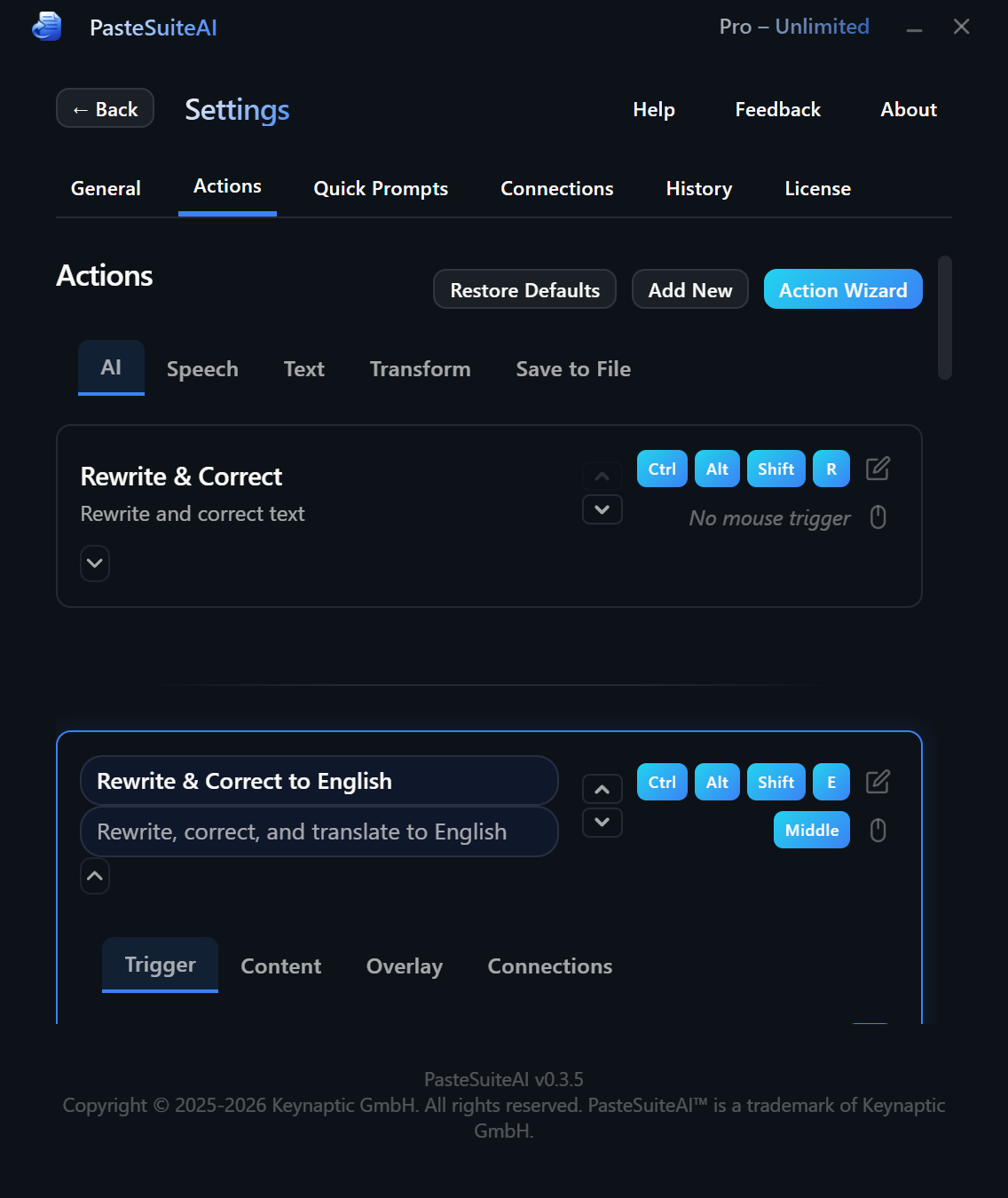
Every STT action has its own independent configuration section. Open Settings > Actions, find an STT action card, and expand its STT Configuration section to access these settings.
| Element | Type | Description |
|---|---|---|
| Audio mode toggle (Instruct / Transcribe) | Segmented button | Switches the STT connection between Instruct and Transcribe mode. Only visible for connections whose model supports audio input. |
| Microphone dropdown | Select | Choose a specific microphone device or leave on Default to use the system default. Only shown when more than one audio input device is detected. |
| Language chips (input languages) | Chip buttons | Shows the languages configured for this action. The active input language chip is highlighted in blue. Click a chip to make it the active input language. Click the X on a chip to remove that language. |
| Add language button | Button | Opens an inline form to add a language. Choose from a curated list or enter a custom BCP-47 language code and name. |
| Output language dropdown | Select | Select a language to auto-translate the transcription into after it is produced. Populated from the input languages added to this action. Leave empty to skip translation. |
| Sample rate selector | Select | Audio sample rate for microphone capture. Options: 16,000 Hz (recommended), 24,000 Hz, 32,000 Hz, 48,000 Hz. |
| Noise suppression toggle | Toggle | Reduces background noise. Useful in noisy environments. |
| Echo cancellation toggle | Toggle | Removes echo from speakers playing back into the microphone. Enable when speakers are active during recording. |
| Auto gain control toggle | Toggle | Automatically adjusts microphone volume to maintain consistent levels regardless of mic sensitivity or speaker distance. |
Starting a Recording
You can start an STT recording in three ways:
- From the main panel: Click the microphone button that appears on any STT action card in the action list.
- Via hotkey: Press the hotkey assigned to an STT action (for example Ctrl+Shift+Alt+S for Audio to Text).
- Via mouse trigger: Use the action's configured mouse trigger if one is set up.
- From the PromptBar: Click the microphone button inside the PromptBar to dictate your prompt. See PromptBar & Quick Prompts.
Configure hotkeys and mouse triggers for STT actions in Settings > Actions.
Recording Limits
The following limits apply to all recordings:
| Limit | Value |
|---|---|
| Maximum recording duration | 12 minutes (720 seconds). Recording stops automatically at this limit. |
| Countdown timer appears at | 2 minutes remaining (120 seconds) |
| Minimum audio size | 1,000 bytes. Recordings below this threshold (empty or silent) are rejected before being sent to the provider. |
| Maximum audio file size | 100 MB. Very long recordings at high sample rates may approach this limit. |
Supported Providers
Any connection with the STT capability can be used for speech-to-text actions. Which providers offer STT depends on which connections you have configured. Common STT-capable providers include OpenAI (Whisper), Azure OpenAI, and OpenAI-compatible endpoints that expose a transcription API.
See Connections for how to add an STT-capable connection and how to assign it as the default STT connection or to specific actions.
Related Topics
- Connections — setting up and configuring STT-capable AI connections
- Actions — creating STT actions, assigning hotkeys, and configuring execution modes
- PromptBar & Quick Prompts — using the microphone button to dictate prompts